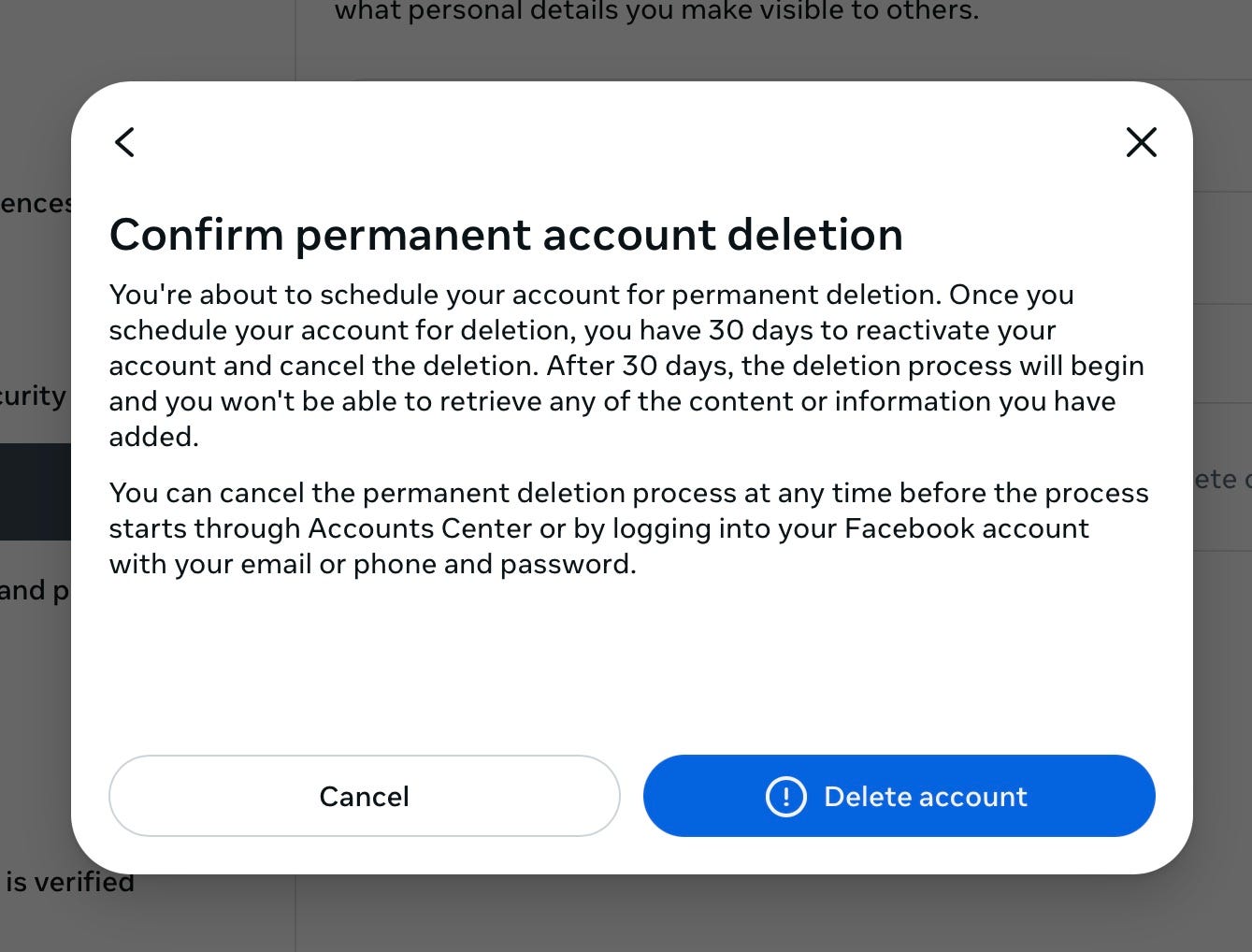
Tired of Facebook's privacy issues, constant ads, and data collection? You're not alone. Millions of users are choosing to permanently delete their Facebook accounts every year.
But there's a difference between deactivating your account (temporary) and deleting it (permanent). This guide walks you through how to permanently delete your Facebook account and what happens to your data afterward.
Before You Delete: Important Things to Know
Deactivate vs. Delete
Deactivate (Temporary):
- Your profile disappears but data stays on Facebook's servers
- You can reactivate anytime by logging back in
- Messenger still works
- Your data is NOT deleted
Delete (Permanent):
- Your profile and data are permanently removed
- You have 30 days to cancel (grace period)
- After 30 days, it's gone forever
- Messenger stops working
This guide covers permanent deletion.
What Gets Deleted
When you permanently delete your Facebook account:
✅ Your profile, photos, videos, and posts
✅ Your messages (from your view)
✅ Your likes, comments, and shares
✅ Your friends list and connections
Note: Things other people posted ABOUT you (tags, mentions) may remain, but without your name attached.
What Facebook Keeps
Facebook may retain some data for legal/operational reasons:
- Logs of your activity (IP addresses, device info)
- Messages you sent to others (in their inboxes)
- Data required for legal compliance
But your profile and personal content will be gone.
Step 1: Download Your Facebook Data (Optional But Recommended)
Before deleting, download a copy of your data. You might want it later.
How to Download Your Data:
- Go to Settings & Privacy → Settings
- Click Your Facebook Information
- Click Download Your Information
- Select:
- Date range: All time
- Format: JSON (for archival) or HTML (for viewing)
- Media quality: High
- Click Create File
Facebook will email you when it's ready (usually 24-48 hours).
Download the file and save it somewhere safe.
Step 2: Delete Connected Apps and Services
Facebook is used to log into other apps and websites. Before deleting, you'll need to switch to different login methods.
How to Check Connected Apps:
- Go to Settings & Privacy → Settings
- Click Apps and Websites
- Review the list of apps using Facebook Login
- For each app:
- Go to that app's settings
- Change login method (use email or Google Sign-In)
- Disconnect Facebook
Common apps that use Facebook Login:
- Spotify
- Instagram (same company, but separate login)
- Tinder, Bumble (dating apps)
- Airbnb
Important: If you don't change login methods, you'll lose access to these accounts when Facebook is deleted.
Step 3: Save Important Contacts
Your Facebook friends list will disappear. If you want to stay in touch:
- Go to Friends → All Friends
- Manually save contact info for people you want to keep
- Or message them: "Hey, I'm deleting Facebook. Here's my email/phone."
Once deleted, you won't have access to this list anymore.
Step 4: Delete Your Facebook Account (Permanently)
Now for the actual deletion.
Desktop Instructions:
- Click the menu icon (top right)
- Go to Settings & Privacy → Settings
- Click Your Facebook Information
- Click Deactivation and Deletion
- Select Permanently Delete Account
- Click Continue to Account Deletion
- Enter your password
- Click Delete Account
Mobile Instructions:
- Open the Facebook app
- Tap menu icon (three lines, bottom right)
- Tap Settings & Privacy → Settings
- Tap Personal Information → Account Ownership and Control
- Tap Deactivation and Deletion
- Select Permanently Delete Account
- Tap Continue to Account Deletion
- Enter your password
- Tap Delete Account
Step 5: Wait 30 Days (Grace Period)
Facebook gives you 30 days to change your mind.
During this time:
- Do NOT log in (this cancels deletion)
- Do NOT use Facebook Login on other apps
- Your account is hidden but not deleted yet
After 30 days:
- Deletion is permanent
- No way to recover your account
- All data is removed from Facebook's servers
What Happens After Deletion
Immediate Effects:
- Your profile disappears
- People can't find you on Facebook
- Messages you sent disappear from your view
- Messenger stops working
Within 90 Days:
- Facebook removes your data from their servers
- Some data may remain in backups temporarily
- Completely gone after 90 days (per Facebook's policy)
What Others See:
- Your name becomes "Facebook User"
- Photos you posted may remain in others' albums (but untagged)
- Comments you made show as "Facebook User"
Alternatives to Deleting Facebook
Not ready to fully delete? Consider these options:
1. Deactivate Temporarily
- Take a break without losing data
- Reactivate whenever you want
- Profile hidden while deactivated
2. Limit Your Usage
- Unfollow everyone (clean feed)
- Turn off all notifications
- Delete the app (use browser only)
- Set time limits (Screen Time on iOS)
3. Lock Down Privacy Settings
- Make profile private
- Limit who can see posts
- Turn off face recognition
- Opt out of ad targeting
After Deleting Facebook: What About Your Data Elsewhere?
Deleting Facebook removes YOUR account, but Facebook (Meta) still has data about you from:
- Instagram (owned by Meta)
- WhatsApp (owned by Meta)
- Tracking pixels on websites you visit
- Data brokers who purchased your info
How to Remove Facebook Data from Data Brokers:
- Request deletion from Meta directly (CCPA/GDPR rights)
- Opt out of data brokers who purchased your Facebook data
- Use tools like GhostSweep to find which brokers have your info
Deleting your Facebook account is step one. Removing your data from brokers is step two.
FAQ
Can I recover my account after 30 days?
No. After the 30-day grace period, deletion is permanent.
Will my messages disappear from other people's inboxes?
No. Messages you sent will remain in their Messenger, but your name will show as "Facebook User."
What happens to photos I'm tagged in?
The tag is removed, but the photo remains (you just won't be named).
Can I delete Facebook but keep Instagram?
Yes. They're separate accounts (even though Meta owns both).
How do I know deletion is complete?
After 90 days, try logging in. If it says "account not found," it's gone.
Final Thoughts
Deleting Facebook is a big step toward reclaiming your privacy. But remember:
- Download your data first (you might want it later)
- Update login methods for apps using Facebook
- Clean up data broker exposure (Facebook has already sold your data)
Your Facebook account is just one piece of your digital footprint. For a complete privacy cleanup, scan your email for all forgotten accounts and remove yourself from data broker databases.
Ready to see your full digital footprint? Scan your email for free with GhostSweep →
Last updated: January 2026