You probably have 100+ online accounts.
You remember about 12.
Here's how to find the other 88 - no tools required.
What You'll Need
- Gmail account (or any email you've used for signups)
- 30 minutes
- Spreadsheet (Google Sheets, Excel, or even a note app)
- Coffee (optional but recommended)
That's it.
Why This Works
Every time you create an account, companies send you an email:
- "Welcome to [Service]"
- "Verify your email address"
- "Confirm your account"
- "You're in!"
You've been getting these for years. You just never looked at them as a dataset.
These emails are a complete record of every account you've created.
Step 1: Search Your Gmail
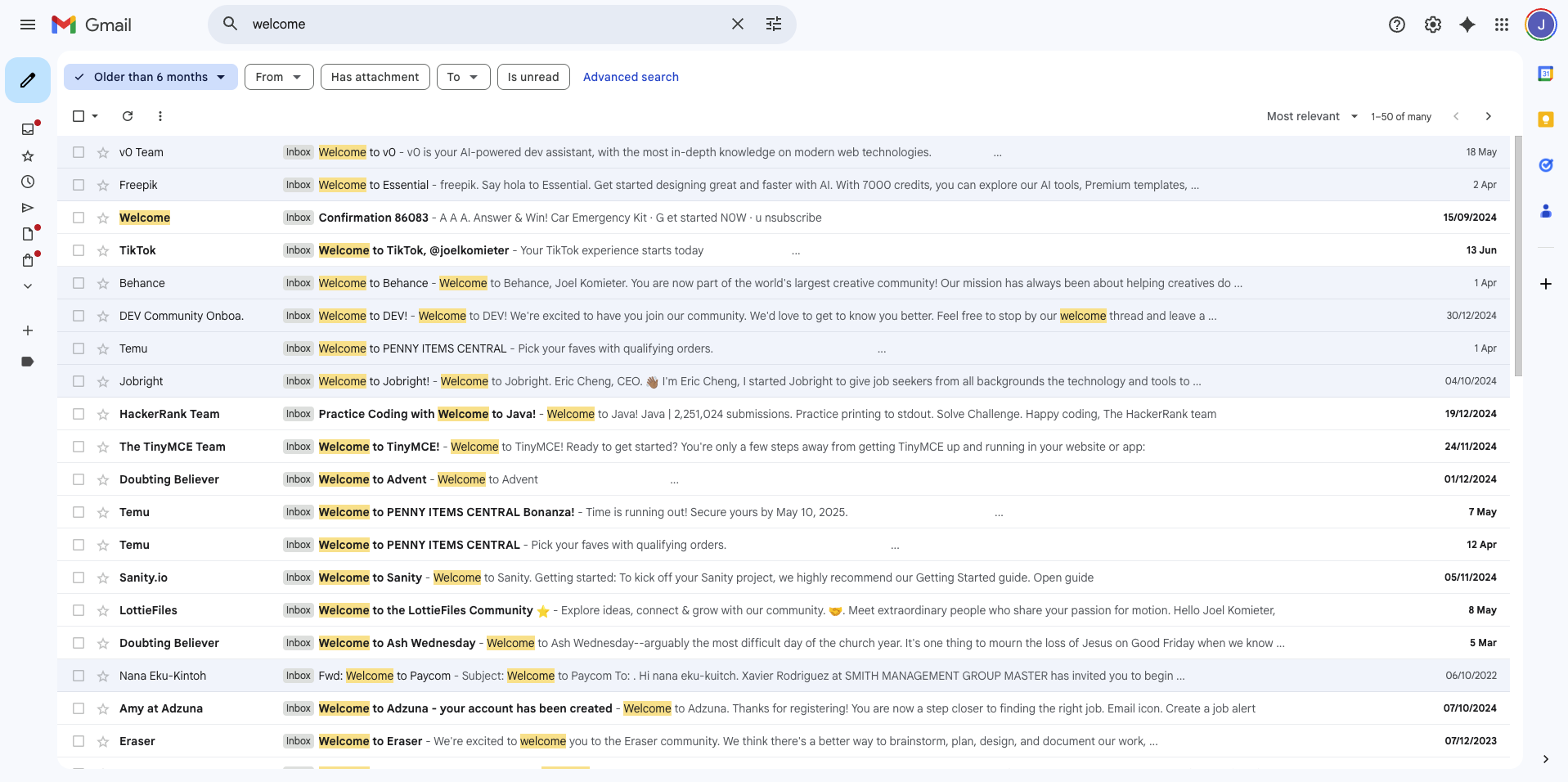
Open Gmail and use these search queries:
Query 1: Welcome Emails
subject:welcome
This finds:
- "Welcome to Netflix"
- "Welcome to Amazon"
- "Welcome to Spotify"
Expected results: 50-100 emails
Query 2: Verification Emails
subject:(verify OR confirm) email
This finds:
- "Verify your email address"
- "Confirm your account"
- "Please verify your email"
Expected results: 100-150 emails
Query 3: Account Creation
subject:(account created OR new account OR account confirmation)
This finds:
- "Your account has been created"
- "New account confirmation"
- Account setup emails
Expected results: 30-50 emails
Query 4: Security & Access
subject:(password OR security OR login OR access)
This finds:
- Password reset emails (= you have an account)
- Security notifications
- Login confirmations
Expected results: 200+ emails (many duplicates)
The Power Query (All at Once)
subject:(welcome OR verify OR confirm OR “account created” OR “new account”)
This will return everything.
Expect 500-1000 results.
Don't panic. We'll filter through them.
Step 2: Create Your Spreadsheet
Set up a simple spreadsheet with these columns:
| Service Name | Email Date | Category | Status | Has Payment? | Delete? |
|---|---|---|---|---|---|
| Netflix | 2019-03-15 | Entertainment | Active | Yes | No |
| Quibi | 2020-04-05 | Entertainment | Dead | Maybe | Yes |
Why this structure:
- Service Name: What is it?
- Email Date: When did you sign up?
- Category: What type (social, shopping, work, etc.)
- Status: Active, inactive, or dead company
- Has Payment: Does it have your credit card?
- Delete: Should you delete it?
Step 3: Go Through The Results
Time to be honest with yourself.
For each email result:
Ask These Questions:
1. Do I still use this?
- If yes: Keep, mark as Active
- If no: Continue to question 2
2. Will I use this again in the next 6 months?
- If yes: Keep, mark as Inactive
- If no: Continue to question 3
3. Does it have my payment information?
- If yes: Priority delete (mark in red)
- If no: Continue to question 4
4. Is it from a company that still exists?
- If no: Can't delete (company gone)
- If yes: Mark for deletion
Categories to Watch For:
🚨 High Priority Delete:
- Free trials you forgot to cancel
- Services with stored credit cards
- Accounts that have been breached (check Have I Been Pwned)
- Dating apps/social networks you don't use
- Old shopping accounts
⚠️ Medium Priority:
- Accounts from companies that still exist
- No payment info stored
- Haven't used in 2+ years
✅ Keep:
- Active services you use
- Banking, healthcare, government
- Services you'll need again soon
Step 4: Check For Breaches
For each account, check if it's been compromised:
Go to: haveibeenpwned.com
Enter your email address
You'll see:
- Which services were breached
- When they were breached
- What data was leaked
Mark breached accounts as HIGH PRIORITY for deletion.
Step 5: The "Sign Up With Google" Problem
Gmail search won't catch all OAuth accounts.
To find these:
- Go to myaccount.google.com/permissions
- You'll see every app with access to your Google account
- Add these to your spreadsheet
- Revoke access to ones you don't recognize
Common surprises:
- Games you played once in 2015
- Apps you tried for 5 minutes
- Services you don't even remember
- 50+ connected apps is normal
Step 6: Check Other Email Accounts
Don't forget:
- Old work emails
- College email
- That Yahoo account from 2005
- Alternative emails you used for "spam signups"
Repeat the Gmail search process for each.
Pro tip: Forward all old accounts to your main Gmail, then search there.
Step 7: Start Deleting
Now the hard part.
For each account you want to delete:
The Process:
1. Google it
[service name] delete account
2. Follow their process
- Some have a button in settings
- Some require emailing support
- Some make you jump through hoops
3. Document it
- Mark date you requested deletion
- Save confirmation emails
- Track 30-day waiting periods
4. Verify deletion
- After their stated time period
- Try to log in (should fail)
- Search email for "deleted" confirmation
If They Make It Difficult:
Try the GDPR approach:
Email their support:
Subject: GDPR Article 17 - Right to Deletion Request

I request complete deletion of my account and all associated
personal data per GDPR Article 17 (Right to Erasure).

Account email: [your email]
Account name: [if you remember]

Please confirm deletion within 30 days as required by law.

Thank you.
Even if you're not in Europe, this often works.
Companies don't want GDPR trouble.
What You'll Discover
After doing this, most people find:
- 100-200 total accounts
- 20-30 with payment info stored
- 5-10 already breached
- 10-15 from companies that no longer exist
- $50-200/year in forgotten subscriptions
One person found:
- 254 accounts
- $360/year in forgotten charges
- 2 breached accounts they didn't know about
- 7 companies that shut down but kept their data
Time Investment
Realistic timeline:
- Hour 1: Search Gmail, create spreadsheet, list accounts
- Hour 2: Categorize, check for breaches, prioritize
- Hour 3: Start deletion process for high-priority accounts
- Week 1: Continue deleting (15-30 min/day)
- Month 1: Complete deletion of everything you wanted gone
Total active time: 5-8 hours spread over a month
Worth it? Absolutely.
The Maintenance Plan
Don't let this happen again.
Going forward:
Monthly:
- Check your "Sign up with Google" connections
- Review new account creation emails
- Delete anything you only used once
Quarterly:
- Full account audit
- Check for new breaches
- Update passwords on accounts you keep
Yearly:
- Deep clean
- Delete inactive accounts
- Review payment methods stored
The Easy Way
Don't want to do this manually?
I built GhostSweep to automate this exact process:
- Scans your Gmail automatically
- Shows all accounts in one place
- Checks for breaches
- Helps with deletion requests
- Tracks what you've deleted
But you don't need it. Everything above works without any tool.
It just takes time.
Final Checklist
Before you start:
- Block out 30 minutes
- Open Gmail
- Create spreadsheet
- Make coffee
- Run the search queries
- List all accounts found
- Check for breaches
- Prioritize deletions
- Start with high-priority
- Document everything
- Set calendar reminder to follow up
Ready? Start now.
The accounts you forget are the accounts that get breached.
You can't protect what you don't know exists.
Questions? Found something interesting? Tweet @GhostSweep - I'd love to hear what you discovered.